How to Install EMEET Nova 4K Webcam on PC (Setup & Review)

If your laptop camera makes you look blurry and washed out on every call, a dedicated webcam is the quickest upgrade you can make. The EMEET Nova 4K is one of the more affordable ways to get a true 4K picture with autofocus.
In this guide we cover what the camera offers, an honest look at its pros and cons, and how to install it on a Windows PC step by step. At the end, you will test it for free with our online Webcam Test to make sure everything works.
EMEET Nova 4K Webcam Features
Here is what you get with the EMEET SmartCam Nova 4K at a glance.
4K Ultra HD video
Records sharp 4K video, up to 30 frames per second, which is more detail than a typical laptop or 1080p webcam.
Autofocus (PDAF)
Phase-detection autofocus keeps your face sharp when you lean in, move around, or hold something up to the camera.
73° field of view
A natural, close framing that suits a single person at a desk without too much of the room in the shot.
Dual noise-reducing microphones
Built-in mics let you join a call without extra gear, and they filter some background noise.
Physical privacy cover
A slide-on cover blocks the lens when you are not using the camera, so you never have to wonder if it is watching.
Plug and play
Connects over USB-A and works on Windows, macOS, and Linux without installing drivers.
Pros and Cons
Pros
- Real 4K image that is noticeably sharper than a built-in laptop webcam
- Fast autofocus that keeps up when you move
- No driver or software needed — Windows detected it as soon as it was plugged in
- Built-in microphones are good enough for meetings and classes
- Physical privacy cover and a clear LED that shows when the camera is on
- Clip mount fits most monitors and laptops
Cons
- 4K is limited to 30 fps, so it is not the choice for fast, ultra-smooth motion
- USB-A connector only — you will need an adapter on laptops with USB-C ports only
- The 73° view is tight, so it is not ideal for showing several people in a room
- Low-light footage still shows some noise, as with most webcams in this class
- Video apps often cap the resolution, so you may not see 4K in every call
Honest Review
Setup is as easy as advertised
There is nothing to install. We plugged it in, the blue light came on, and the browser listed it as "EMEET SmartCam Nova 4K" straight away. For people who just want a camera that works, this is the biggest selling point.
Picture quality is a clear step up
Compared with a built-in laptop camera, the image is sharper and autofocus keeps your face crisp. It is not magic though. In a dim room you will still see some grain, so a simple desk lamp or a window in front of you helps more than any setting.
4K is great, but be realistic
Most meeting apps compress video heavily and many cap the resolution at 1080p or lower. You will get the full 4K detail when recording or streaming, and a cleaner, sharper image in calls even when the app lowers the resolution.
Who should buy it
It is a good fit for remote workers, teachers, and streamers who sit in front of one screen and want a big quality jump without a complicated setup. If you need a wide shot of a whole meeting room, or you only have USB-C ports and do not want an adapter, look at other options.
What You Need Before Installing
- The EMEET Nova 4K webcam and its USB cable
- A Windows PC with a free USB-A port (USB 3.0 recommended)
- A modern browser such as Chrome, Edge, or Firefox
How to Install the EMEET Nova 4K Webcam on PC
Follow these steps in order. The whole process takes about two minutes.
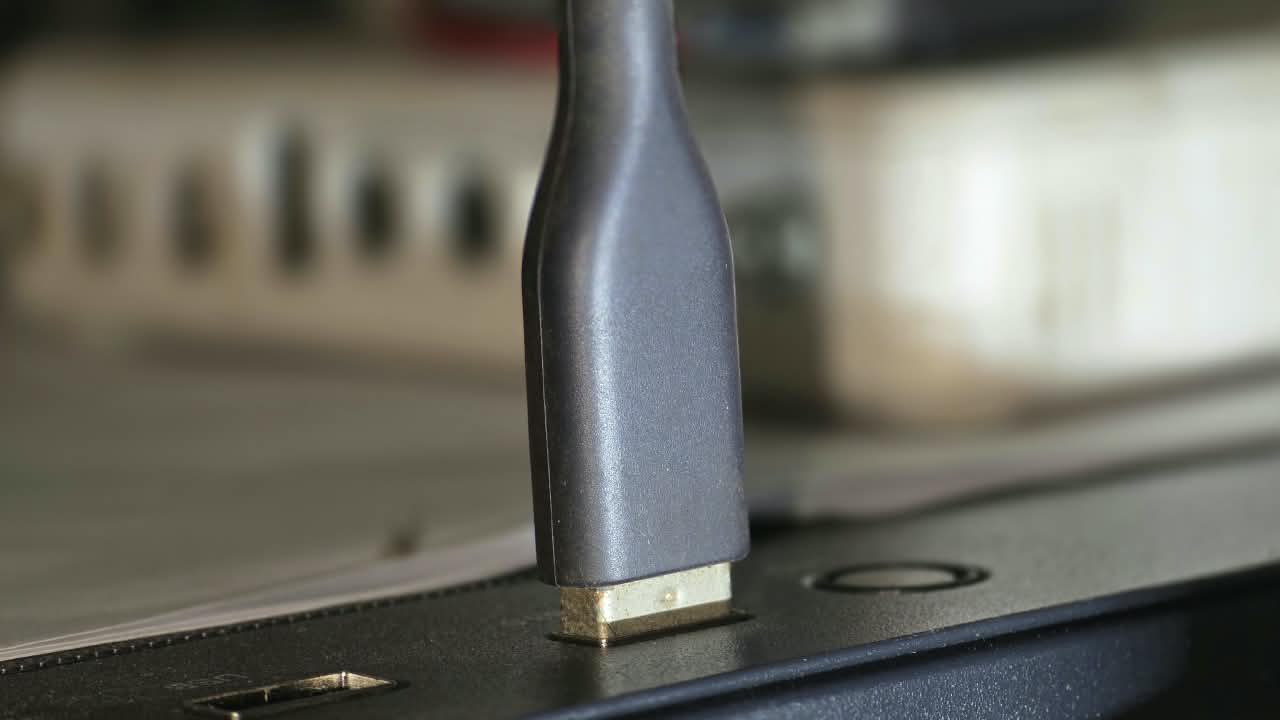
1Plug the USB cable into your PC
Connect the USB cable to the webcam, then plug the other end into a USB port on your computer. Use a port directly on the PC rather than a hub, and a USB 3.0 port if you have one, so the camera gets enough bandwidth for 4K.
2Mount it and check the blue light
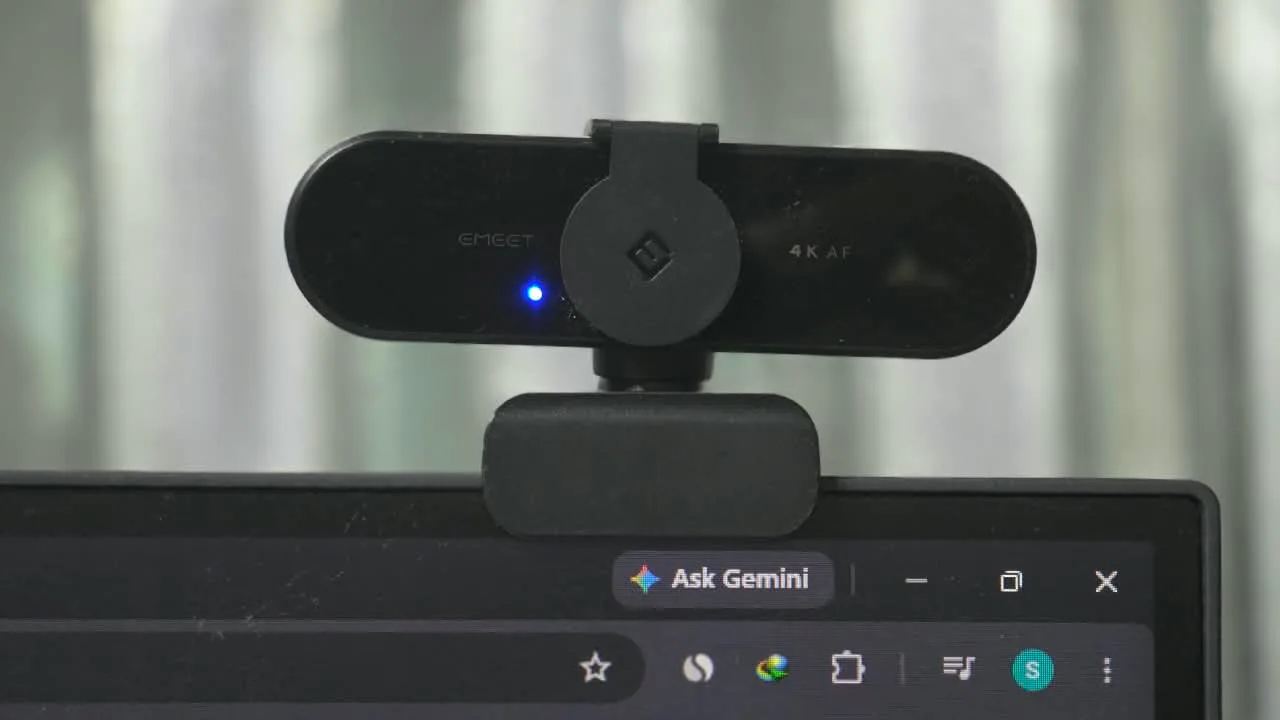
Clip the webcam on top of your monitor so the lens sits at eye level, centered above the screen. Slide the privacy cover away from the lens. A blue light on the front means the camera has power and is ready to use. Windows will set it up on its own, so you do not need to download a driver.
3Open the Webcam Test and allow camera access
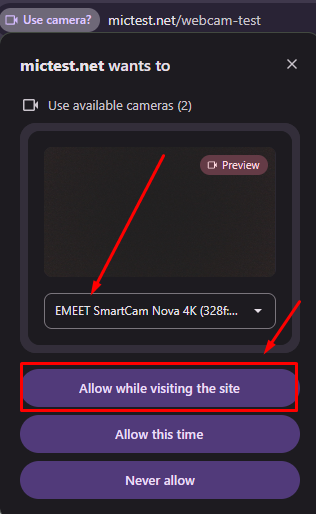
Go to our free Webcam Test and start the camera. Your browser will ask for permission. Pick "EMEET SmartCam Nova 4K" from the camera list, then click "Allow while visiting the site".
4Confirm the video is working
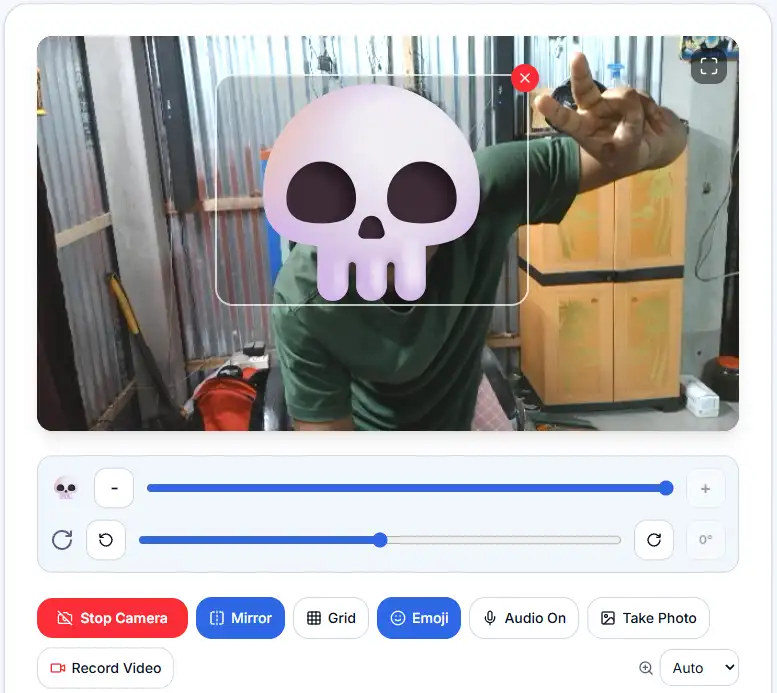
If you see yourself on screen, the webcam is installed correctly. Try moving closer and further away to watch the autofocus, and use the tools under the video to check mirror mode, the grid, and photo capture.
5Choose it in Zoom, Teams, Meet, or OBS
Open the video settings of the app you use and select "EMEET SmartCam Nova 4K" as your camera. If you want to use the built-in microphone too, choose the EMEET microphone in the audio settings. You can check it first with our Microphone Test.
Troubleshooting Common Problems
- Camera not detected — unplug it, try a different USB port (ideally a blue USB 3.0 port on the back of a desktop), and avoid unpowered USB hubs.
- Blue light is on but the screen is black — remove the privacy cover from the lens.
- No permission prompt appears — click the camera icon in the address bar, set Camera to Allow, then reload the page.
- Another app is using the camera — close Zoom, Teams, OBS, or any other app that might be holding it, then test again.
- Image looks soft — wipe the lens with a clean microfiber cloth and give autofocus a second to settle.
Frequently Asked Questions
Final Thoughts
The EMEET Nova 4K is an easy, no-fuss upgrade. It installs in a minute, looks much better than a laptop camera, and the privacy cover is a nice touch. The limits are 30 fps at 4K, a USB-A plug, and a fairly narrow view, so check that those fit how you work before you buy.
Once it is plugged in, run a quick check at mictest.net/webcam-test before your next call.